EZ LYNK Auto Agent 3 Setup & Tune Install Guide
Powertech Diesel | Idaho Falls
EZ LYNK Auto Agent 3
Setup & Tune Install Guide
The complete, current guide for the Auto Agent 3: connect it, lynk it to Powertech Diesel, fetch your tunes, and install them safely. This replaces the old Auto Agent 2 sheet.
What is different on the 3
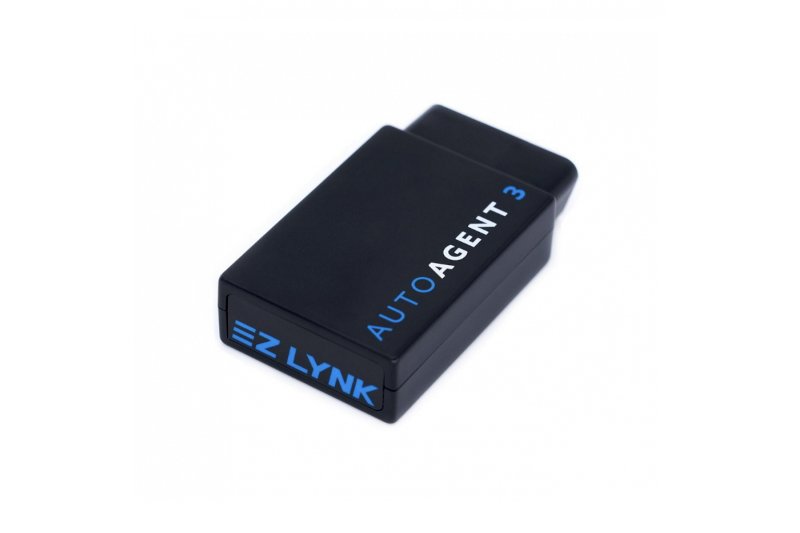
- Built-in OBD-II plug: plugs straight into the port under the dash.
- USB-C port and microSD slot on the unit for service and support.
- Stronger Wi-Fi: your phone or tablet joins the Auto Agent's own Wi-Fi network to talk to the Auto Agent app.
- Two status lights: green means power, blue means its Wi-Fi is broadcasting.
- Automatic firmware updates through the app. Let them finish before you flash.
Before you start
1. Charger on
Put a battery charger on the truck and leave it on for the whole flash. Low or dropping voltage during an install can corrupt the flash.2. Parked & off
Park safely, with accessories, lights and HVAC off. You will turn the key to RUN, engine OFF, in Step 2.3. Phone ready
Phone charged, with cell data or Wi-Fi nearby. You need internet to create your account, lynk, and download tunes.4. Time to finish
Do not start a flash you cannot finish. Never unplug the device, close the app, or cycle the key except when the app tells you to.Get the app & make your account
Download the free Auto Agent app by EZ LYNK from the App Store or Google Play. Open it, create your account, and tap the confirmation link EZ LYNK emails you.
If the app offers a firmware or app update, let it finish now, not in the middle of a flash.
| Phone / tablet | iOS 15+ or Android 6.0+ |
| App | Auto Agent (EZ LYNK) |
| Internet | Cell data or Wi-Fi |
Prep the truck: charger on, key to RUN
Hook up the battery charger and leave it connected. Turn the key to RUN with the engine OFF so the truck computer wakes up. Push-button start: press Start without your foot on the brake until the dash lights up.
| Charger | On & connected |
| Key | RUN |
| Engine | OFF |
Plug in the Auto Agent 3
Plug the Auto Agent 3 straight into the OBD-II port under the dash on the driver side. On most trucks there is no cable in between (see the 2018+ Ram note below). Watch the lights on the unit.
| ● Green solid | Power on |
| ● Blue solid | Wi-Fi ready |
| Green only | Unplug, replug |
Connect your phone to the Auto Agent 3
Open your phone's Wi-Fi settings and join the network named EZLYNK_ followed by your device's serial number (for example EZLYNK_1234). Then return to the app. It should show your truck as Connected and read the VIN.
| Home Wi-Fi | |
| EZLYNK_#### | Connected |
| Neighbor Wi-Fi |
Lynk your truck to Powertech Diesel
In the app: open the menu, tap Vehicle, then Technicians, then the + in the top-right corner. Lynk to:
If the app asks about modifications on your truck, list them and tap Done. Lynking needs internet, so a phone should have cell data on.
When it works, Powertech Diesel shows under Lynked With. Then let Powertech know you are lynked. Your tunes are sent to your account after that, usually during shop hours.
| Menu | Vehicle |
| Then | Technicians |
| Tap | + (top right) |
Fetch your tunes in ECU Profiles
In the app menu, tap Vehicle, then ECU Profiles. Tunes Powertech sent you appear here. Tap the cloud (fetch) icon next to a tune marked Available for Fetching to download it.
| Your tune file | Available for Fetching |
| Tap | Cloud / fetch icon |
| Then it shows | Ready to Install |
Install the tune: follow every prompt
Tap the tune, then Install. The app walks you through key ON / key OFF steps. Follow them exactly and wait for Installed.
Unlock or reset file first: if Powertech sent a file labeled unlock, reset, or MUST FLASH FIRST, install that one before any tune file.
After the install
- Leave it plugged in: it is your gauges, code reader, and datalogger.
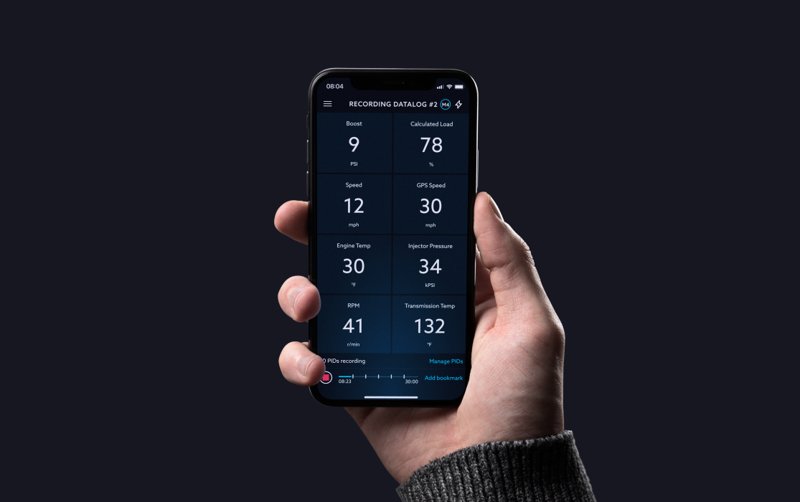
- Watch live data in the app (tiles, gauges, or graphs) and read or clear diagnostic codes there too.
- Send a datalog if Powertech asks: record a log in the app and it shares straight to Powertech through the cloud. You can also message Powertech in the app on the lynked vehicle.
Troubleshooting
| Problem | Fix |
|---|---|
| Only the green light is on | Unplug the Auto Agent 3, plug it back in, and wait for the blue light. The key must be in RUN. |
| App says Not Connected | Confirm you are on the EZLYNK_#### Wi-Fi, then close and reopen the app. |
| No tunes in ECU Profiles | Not lynked yet, or Powertech has not sent them. Check Lynked With (Step 5) and let the shop know. |
| Install stuck at 0% | The download may be incomplete. Unplug the unit, get on a good internet connection, fetch the tune again (cloud icon), plug back in, and retry the install. |
Still stuck?
Check the charger, the key in RUN, the blue light, and the lynk. Most problems are one of those four. If your tunes still do not show up, call Powertech Diesel at 208-542-7793 and mention you lynked to ezlynktuner@protonmail.com.
Powertech Diesel · 2968 N Boeing Street, Idaho Falls, ID 83401 · 208-542-7793 · Mon–Thurs 9:00–6:00 PM, Fri 9:00–5:00 PM MT. EZ LYNK and Auto Agent are trademarks of EZ LYNK. Guide updated November 2026.